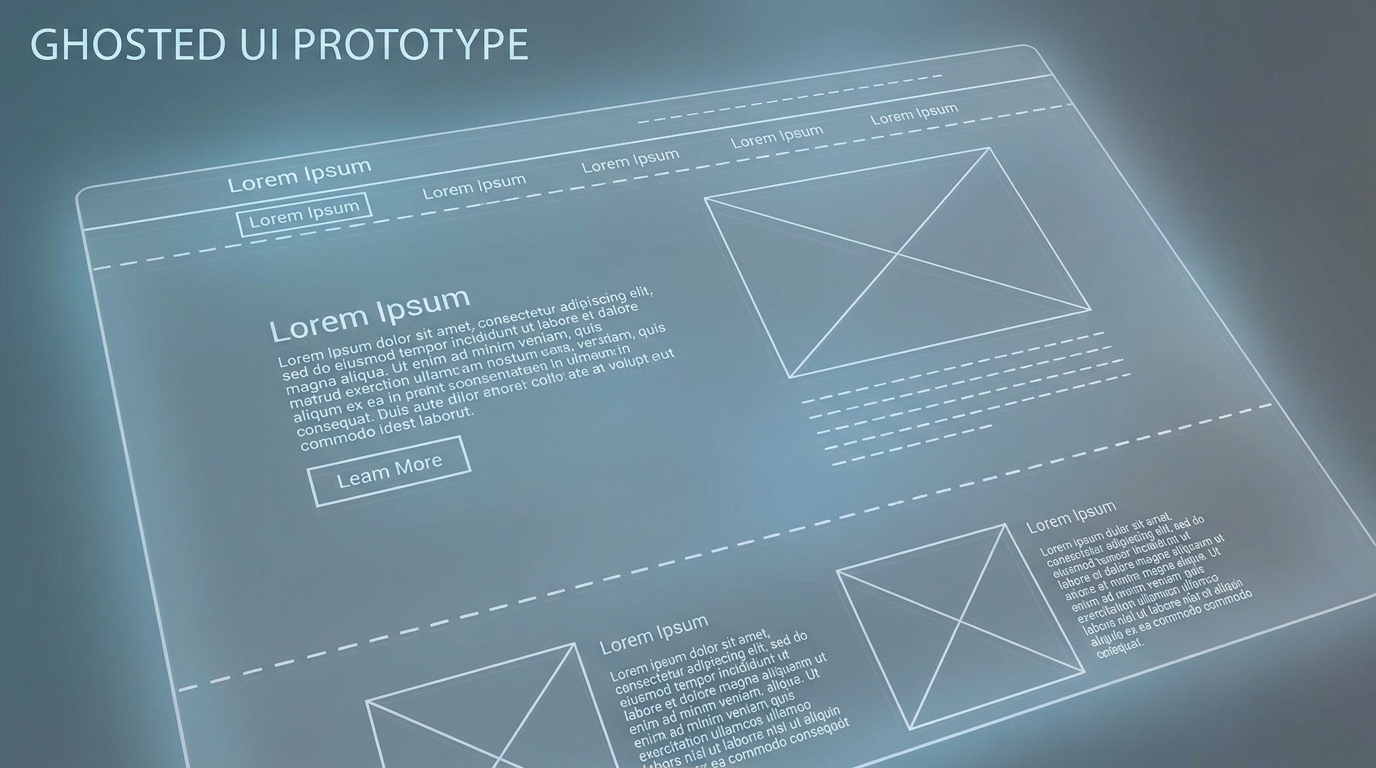
Making a simple change to your website shouldn't require a developer ticket and a 48-hour wait. Yet, for most businesses, that's the reality. The alternative—wrestling with complex drag-and-drop editors—often eats up hours that could be spent on growth. We built Draftly to change this. With our platform, you can use AI chat to edit your site with simple, conversational commands, turning what used to be a technical chore into a creative dialogue.
This isn't about minor text edits. We're talking about fundamentally changing your site's structure, style, and functionality by describing what you want. This approach reduces the average time for common site updates by over 90%, empowering founders and marketers to iterate at the speed of thought, not the speed of their web agency's sprint cycle.
Why Conversational Editing is a Game-Changer
For years, the peak of “no-code” was the visual, drag-and-drop editor. While a massive leap forward, it still required users to learn an interface, understand concepts like padding and margins, and hunt through menus. Conversational editing is the next evolution. It abstracts the how so you can focus entirely on the what.
!using draftlys ai chat to edit your site without touching code, product
Consider this: a recent survey found that 65% of small business owners feel their website is perpetually out-of-date because making changes is too time-consuming or expensive. AI chat editing directly solves this by removing the technical barrier. Instead of learning CSS, you just say what you want.
* Speed: A command like "Change the main headline font to 'Poppins' and make it bold" takes 5 seconds to type. Finding the right settings in a traditional editor can take minutes of clicking through panels.
* Empowerment: You no longer need to translate a creative idea into technical steps for a designer. The AI understands your intent, whether you want to swap two sections or customise fonts and colors across your entire brand kit.
* Precision: AI can execute site-wide changes that would be tedious manually. Imagine trying to change the corner radius of every button on a 20-page site. With AI chat, it's a single command.
How to Use Draftly's AI Chat to Edit Your Site
Getting started is incredibly intuitive. The entire experience is designed to feel like you're briefing a highly efficient junior designer who executes your vision instantly.
1. Access the AI Chat Interface
Once you're inside the Draftly editor, you'll find the AI chat window prominently displayed. It's your command center for all site modifications. There’s no complex setup; just click and start typing.
2. Structure Your Commands for Clarity
The AI is powerful, but it's not a mind reader. The best commands are specific and clear. A great command usually tells the AI three things:
The Action: What do you want to do? (e.g., Change, Add, Remove, Swap*)
The Target: What element or section should be changed? (e.g., the hero section headline, the button in the services section, all H2 tags*)
The Desired State: What should the result look like? (e.g., to the color #1A2B3C, to be 50% larger, a three-column layout*)
Ineffective Command: "Make the button bigger."
Effective Command: "Increase the padding on the primary CTA button in the hero section by 10px on all sides."
3. Real-World Examples of AI Chat Commands
Here are some practical commands you can use to transform your Draftly site, moving from simple tweaks to significant structural changes.
#### Text and Copy Updates
* `Change the headline in the hero section to "The Future of Web Design is Conversational."`
* `Update the second paragraph in the 'About Us' section to say: [your new text here].`
* `Make all the subheadings (H3s) on this page uppercase.`
#### Style and Appearance Changes
* `Set the background color of the footer to a dark grey, #222222.`
* `Apply a subtle box-shadow to all the cards in the features grid.`
* `Change all links to our brand's primary blue color and remove the underline.`
#### Layout and Structure Modifications
* `Add a new section below the gallery using the 'FAQ Accordion' layout from the Section Library.`
* `Swap the position of the 'Testimonials' section and the 'Pricing' section.`
* `Re-order the items in the main navigation menu to: Home, About, Services, Blog, Contact.` You can find more layouts in the Draftly Section Library.
#### Media and Image Edits
* `Replace the image in the second content block with a new one I just uploaded called 'team-photo-2024.jpg'.`
* `Generate a new abstract background image for the hero section with blue and gold tones.` This leverages our built-in AI image generation in Draftly for unique visuals.
* `Add a 10% black overlay to the hero video background to make the white headline text more readable.`
Advanced Commands for Power Users
Once you're comfortable with the basics, you can use AI chat to perform tasks that would typically require custom code or deep knowledge of a design tool.
Global and Site-Wide Edits
Instead of editing page by page, you can apply changes across your entire website with a single command. * `On all pages, change the font of the body text to 'Inter' and set the size to 16px.` * `Apply our brand's green as the hover color for all buttons site-wide.`Responsive Design Adjustments
Fine-tuning the mobile experience is crucial, as over 80% of users in markets like India browse primarily on their phones. You can make device-specific edits without ever touching a CSS media query. * `On mobile devices, hide the third column in the pricing table.` * `Decrease the font size of the main headline to 32px for screen sizes below 768px.` * `Stack the elements in the 'Our Process' section vertically on mobile view.`After making these changes, it's always a good idea to follow our guide on testing your Draftly site on mobile before launch to ensure a perfect user experience.
Dynamic Content and Animations
Bring your site to life with commands that control motion and interactivity. * `Add a fade-in-on-scroll animation to all section headings.` * `Make the gallery images zoom in slightly on hover.` * `Apply a parallax effect to the background image in the 'Impact Stats' section.` For more complex sequences, explore our guide to page transitions and section animations.Editing your website is no longer a technical roadblock. It's a creative conversation. By translating your intent directly into results, Draftly's AI chat empowers you to build, refine, and perfect your online presence faster than ever before.
Ready to build and edit your website just by talking to it? Generate your cinematic 3D website with a single prompt on Draftly today.


