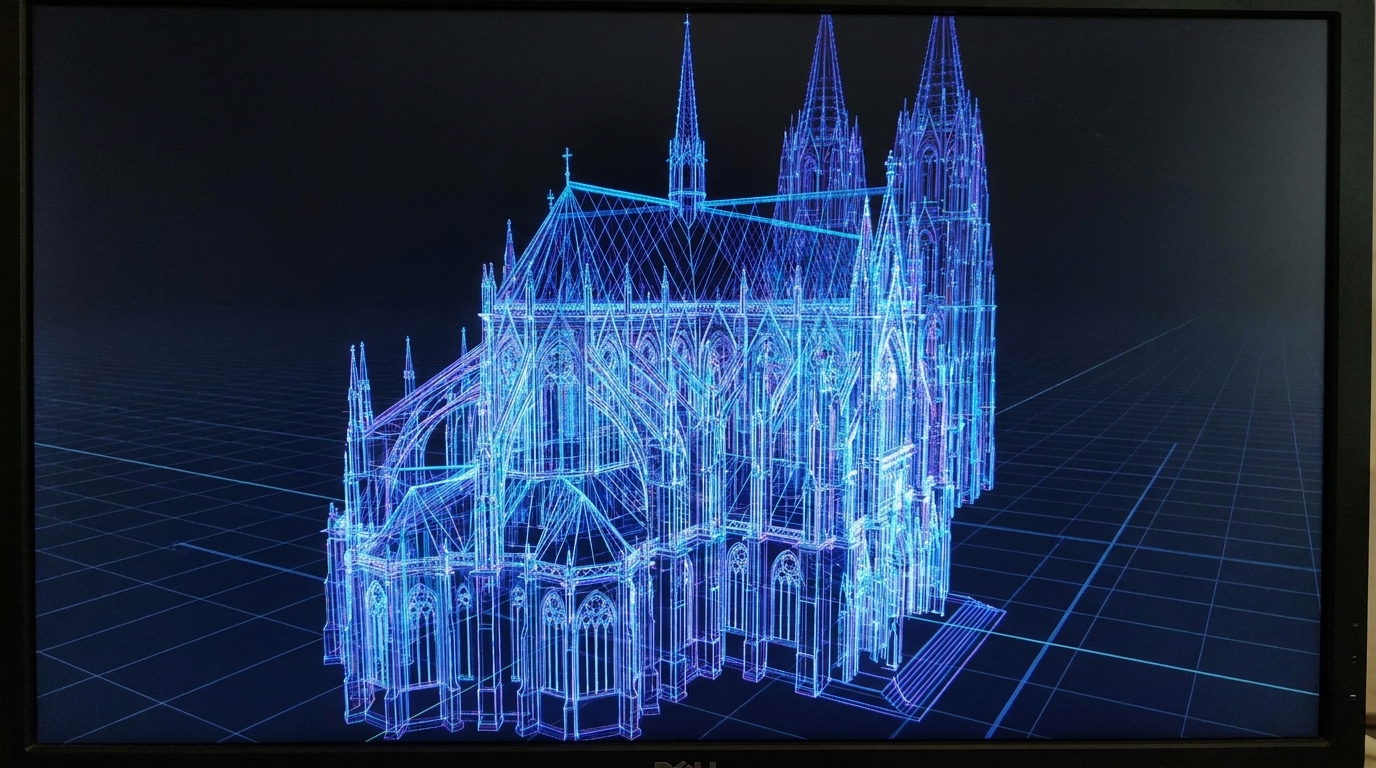
How to Optimize 3D Visuals in Draftly for India's Slower Internet Regions
Designing 3D websites for areas with slower internet speeds in India can be a challenge, but it's far from impossible. With the right optimization techniques in Draftly, you can deliver visually stunning experiences without compromising on performance.
Why Optimize 3D Visuals for Slower Internet Speeds?
According to a report by Ookla, India’s average mobile internet speed in 2023 was 36.35 Mbps, with many rural regions experiencing speeds below 10 Mbps. Without proper optimization, 3D websites can struggle to load, leading to high bounce rates. By tweaking settings and assets in Draftly's 3D builder, you can ensure smooth experiences even in low-bandwidth zones.
!how to optimize 3d visuals in draftly for indias slower internet regions, seo
- Over 60% of India’s internet users are in rural areas where speeds are slower.
- Optimized visuals can reduce bounce rates by up to 42%.
- Faster-loading sites rank higher on Google, improving SEO for your business.
Step 1: Compress 3D Assets Without Losing Quality
High-quality 3D assets can take up significant bandwidth. Compressing these visuals is a key first step.
- Use Draftly’s built-in compression tools to reduce the size of 3D models and images.
- Convert large textures into lightweight formats like WebP, which can reduce file sizes by 25%-34% without a noticeable loss in quality.
- Test compressed assets on mobile with Draftly's mobile preview tool.
Pro Tip: Optimize for WebGL
WebGL-based 3D assets perform better when optimized for the web. Simplify your 3D meshes to lower polygon counts, ensuring smoother rendering.
Step 2: Implement Lazy Loading for Heavy Sections
Lazy loading ensures that 3D elements load only when they are in the viewport, reducing initial page load time.
- Enable lazy loading for 3D animations and background videos in Draftly’s Advanced Animation Settings.
- Prioritize above-the-fold content while deferring heavy assets like 3D carousels or interactive elements.
- Test lazy loading performance using Draftly’s site speed analytics.
Step 3: Simplify Animations and Effects
Animations add depth but can strain slower connections. Simplifying them can strike a balance between interactivity and speed.
- Use lightweight animations like fade-ins instead of complex scroll-driven effects.
- Limit FPS (frames per second) for animations to 24 FPS, which is sufficient for smooth visuals without draining bandwidth.
- Refer to the Draftly Motion Pass Guide to refine animation settings.
Step 4: Optimize Video Backgrounds
Video backgrounds are visually appealing but can be data-heavy. To keep load times manageable:
- Use Draftly’s AI to generate low-bitrate versions of videos specifically for mobile users.
- Convert videos to the MP4 format with H.264 encoding for better compression.
- Use Draftly’s Video Generation tools to produce optimized assets.
Sub-section: Add Fallbacks for Non-3D Browsers
Not all browsers in slower regions support advanced 3D rendering. Ensure your site includes fallback 2D visuals or simplified versions of interactive elements to maintain usability.
Step 5: Test and Iterate
After implementing these changes, thorough testing is critical.
- Use speed-testing tools like Google’s PageSpeed Insights to identify further bottlenecks.
- Leverage Draftly’s heatmap tool to see how users interact with 3D visuals and adjust accordingly.
- Continuously monitor performance through Draftly’s analytics dashboard.